
Amazon affiliate links - we earn a commission.Affiliate disclosure

Buying guide · 12 min read · Updated 2026-11-21

Best KVM Switches (2026)

Six KVM switches compared on monitor count, 4K refresh rate, USB ports, laptop docking and remote access, with picks for two PCs, four PCs and dual monitors.

Brianna Cole, Lead Product EditorBy Brianna ColeLead Product Editor6 picks comparedSpec-sheet verified
Best KVM Switches

At a glance

Our top picks

Side by side

Spec comparison

A KVM switch lets several computers share one keyboard, mouse and monitor, with a button or hotkey to switch between them. It clears away the second keyboard and screen, and for people with a work laptop and a personal desktop it can make a small desk usable.

The details that matter are monitor count, refresh rate and cable type. A switch that does 4K at 60 Hz may only manage 30 Hz on a cheaper cable or port, and a dual monitor setup needs a switch built for two displays. Check your video ports and USB cables before buying.

Before you buy

6 Criteria to Look For Before Buying a KVM Switch

  1. 01

    Monitor count

    Single-monitor switches like the Hearvo and UGREEN share one display, while dual-monitor models like the Unitek, AV Access and CMSTEDCD 8K handle two. A dual-monitor KVM needs four video cables for two computers, so the desk gets busy. Count your screens first.

  2. 02

    Resolution and refresh rate

    Many switches list 4K at 60 Hz, while the CMSTEDCD lists 4K at 120 Hz and 8K at 60 Hz. These figures hold only with the right cables, ports and graphics cards. Check that the maximum matches your monitor, because a mismatch gives a lower refresh rate or blank screens.

  3. 03

    Video input type

    HDMI is common, while the Unitek adds DisplayPort. Using the wrong cable or adapter can lose features such as high refresh rates. Match the switch to your video outputs and avoid cheap adapters.

  4. 04

    USB ports and speed

    USB 3.0 ports at 5 Gbps, as on the Hearvo and CMSTEDCD, share drives and webcams. USB 2.0 ports are fine for keyboards and mice. The AV Access adds 10 Gbps. Plan your peripherals before choosing.

  5. 05

    Laptop docking and power

    The AV Access charges a laptop with 100 W power delivery and adds Ethernet over one USB-C cable. Basic KVMs do not charge anything. If a laptop is one of the machines, docking can replace a separate dock.

  6. 06

    Switching method and EDID

    Buttons, hotkeys and desktop controllers switch the active computer. EDID emulation, listed by UGREEN, keeps window layouts stable. Without it, windows can jump after each switch.

Detailed reviews

The 6 best kvm switches, explained

01
Hearvo USB 3.0 HDMI KVM switch for 2 computers 1 monitor, 4K at 60 Hz, 4 USB ports
2 computers1 monitor4K at 60 Hz4 USB 3.0 ports
Check price on Amazon
Best for: People who share one monitor and a keyboard between two computers.

The Hearvo KVM lets two computers share one HDMI monitor, a keyboard and a mouse, with four USB 3.0 ports at 5 Gbps shared among them, including three USB-A ports and one USB-C. It supports 4K at 60 Hz, according to the listing. It can also share a hard drive or a webcam across the machines.

The tradeoff is that it is a single-monitor, HDMI-only design. Compared with the Unitek dual-monitor KVM, it supports one screen, and against the UGREEN four-port, it handles only two computers. It requires USB and HDMI cables for each computer, which the listing may not include in the box. It suits a simple two-computer, one-monitor desk.

In ownership, use good HDMI cables rated for 4K at 60 Hz, since cheap cables are the first cause of flicker. Label the cables for each computer. Update the monitor firmware if you see blank screens after switching.

What works

  • Shares one monitor, keyboard and mouse between two computers
  • 4K at 60 Hz supports sharp, smooth desktop work
  • Four 5 Gbps USB ports share drives and webcams
  • Simple setup with plug and play operation

Watch out for

  • Supports only one monitor and two computers
  • HDMI-only and cable quality can limit 4K at 60 Hz

Specs

Computers
2
Monitors
1
Resolution
4K at 60 Hz
USB
4 ports, 3 USB-A and 1 USB-C, 5 Gbps
Brand
Hearvo
02
UGREEN HDMI KVM switch for 4 computers sharing 1 monitor, 4K at 60 Hz, 6 USB ports
4 computers1 monitor4K at 60 Hz6 USB ports
Check price on Amazon
Best for: Home labs, workshops and testers who need to share one monitor among four machines.

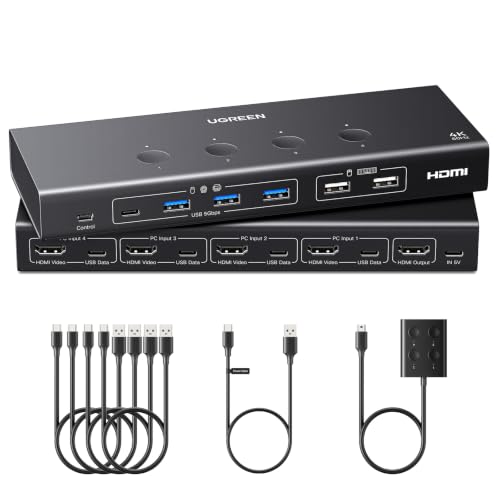
The UGREEN KVM lets four computers share one monitor, with six USB ports made up of four USB 3.0 and two USB 2.0 and support for 4K at 60 Hz. The listing notes EDID emulation, which keeps windows from rearranging themselves when you switch. Each computer needs an HDMI cable and a USB A to C cable for data.

The tradeoff is cabling and complexity. Four computers means eight cables on the desk, which reduces the tidy effect. Compared with the Hearvo, it handles more machines but costs more. Against the AV Access, it has no laptop docking or power delivery. It suits a home lab, a repair bench or a desk with several test machines.

For ownership, label every cable and use cable ties. Use certified HDMI cables for 4K at 60 Hz. Check that your computers support USB-C or USB-A as needed.

What works

  • Four computers share one monitor, which saves a lot of desk space
  • EDID emulation keeps window layouts stable when switching
  • Six USB ports share keyboards, mice and drives
  • 4K at 60 Hz supports crisp desktop work

Watch out for

  • Eight cables for four machines is a lot of clutter
  • No laptop charging or docking features

Specs

Computers
4
Monitors
1
Resolution
4K at 60 Hz
USB
4 USB 3.0 plus 2 USB 2.0
Brand
UGREEN
03
Unitek KVM switch for 2 monitors and 2 computers, HDMI and DisplayPort, 4K at 60 Hz
2 monitors2 computers4K at 60 Hz3 USB 3.0
Check price on Amazon
Best for: Two-monitor desks that need to share between two computers.

The Unitek KVM supports two monitors and two computers, with HDMI and DisplayPort inputs and up to 4K at 60 Hz, plus three USB 3.0 ports. A one-button switch or a desktop controller changes between the computers. The listing says it handles resolutions down to 1080P and 3D.

The tradeoff is complexity of cables. Dual monitors mean four video cables plus USB, and the mix of HDMI and DisplayPort needs care. Compared with the Hearvo, it supports two screens but costs more. Against the AV Access, it lacks 8K and docking features, but is simpler.

In ownership, match each cable to the right port and use rated cables. Test the extended desktop after the first switch. Update graphics drivers if the second monitor shows blank screens.

What works

  • Supports two monitors and two computers in one box
  • HDMI and DisplayPort inputs fit many graphics setups
  • One-button or desktop controller switching is quick
  • Three USB 3.0 ports share peripherals

Watch out for

  • Four video cables plus USB make a cluttered desk
  • Dual-monitor support can be fussy with mixed ports

Specs

Computers
2
Monitors
2
Video
HDMI and DisplayPort
USB
3 USB 3.0 ports
Brand
Unitek
04
AV Access KVM docking station, 2 monitors 2 computers, 100 W PD, 1G Ethernet, 8K
Dual monitor100 W PD1G Ethernet8K at 60 Hz
Check price on Amazon
Best for: People with a work laptop and a desktop who share a dual-monitor desk.

The AV Access KVM combines a dual-monitor switch with a USB-C docking station for a laptop. The desktop side supports up to dual 8K at 60 Hz or dual 4K at 165 Hz, and the laptop connects with a single USB-C cable for dual 4K at 60 Hz, up to 10 Gbps data, 100 W power delivery and 1G Ethernet. It is designed for people who bring a work laptop to a desk with a personal PC.

The tradeoff is cost and complexity. It is the most expensive item in the lineup and relies on the laptop supporting video over USB-C. Compared with the Unitek, it adds docking and 8K but needs more careful cabling. Against the Hearvo, it does far more but is overkill for a simple two-computer setup.

For ownership, check that your laptop USB-C port supports DisplayPort alt mode. Use cables rated for 10 Gbps. Keep firmware updated.

What works

  • One USB-C cable connects a laptop to two monitors, power and network
  • 100 W power delivery charges most laptops
  • Desktop side supports high refresh rates and 8K
  • 1G Ethernet gives a wired network connection

Watch out for

  • Highest price tier in the lineup
  • Needs a laptop with USB-C video support

Specs

Computers
Desktop plus a USB-C laptop
Monitors
2
Charging
100 W power delivery
Network
1G Ethernet
Brand
AV Access
05
CMSTEDCD 8K HDMI KVM switch for 2 monitors and 2 computers, 8K at 60 Hz, 4K at 120 Hz
2 monitors8K at 60 Hz4K at 120 Hz4 USB 3.0
Check price on Amazon
Best for: Gamers and creators who want a dual monitor KVM with fast refresh rates.

The CMSTEDCD dual monitor KVM supports 8K at 60 Hz or 4K at 120 Hz across two HDMI monitors for two computers, and it adds a four-port USB 3.0 hub at 5 Gbps. It is aimed at gamers and creators with fast displays and an extended desktop. The listing says the data speed is ten times faster than USB 2.0.

The tradeoff is that high refresh rates need the right cables and graphics cards. Compared with the Unitek, it supports higher refresh rates but is HDMI only. Against the Hearvo, it costs more for dual monitors. A lesser-known brand also carries more uncertainty than a major brand.

For ownership, use certified high-speed HDMI cables, set the refresh rate in your operating system after switching and check the firmware. Keep the switch ventilated.

What works

  • Supports 4K at 120 Hz for smooth gaming and video
  • Dual monitors extend the desktop on both computers
  • Four USB 3.0 ports share peripherals
  • Eight K support future-proofs the setup

Watch out for

  • Needs high quality HDMI cables and capable graphics cards
  • Lesser-known brand with limited long-term feedback

Specs

Computers
2
Monitors
2
Resolution
8K at 60 Hz or 4K at 120 Hz
USB
4 USB 3.0 ports, 5 Gbps
Brand
CMSTEDCD
06
GL.iNet GL-RM10 Comet Pro remote KVM over Wi-Fi 6, 4K passthrough, touchscreen
KVM over IPWi-Fi 64K at 30 fpsTouchscreen
Check price on Amazon
Best for: Home lab users and IT folk who need remote BIOS-level control of a machine.

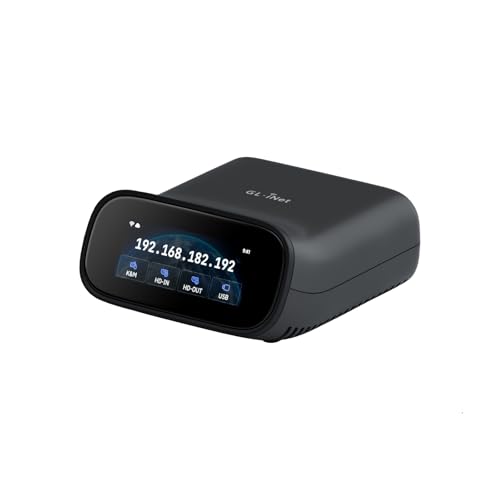
The GL.iNet Comet Pro is not a desk switch but a remote KVM, a small device that lets you control a computer's screen, keyboard and mouse over a network, even at the BIOS level. It supports dual-band Wi-Fi 6 and wired connection, 4K at 30 fps video passthrough, two-way audio and a 2.22 inch touchscreen. It is designed for home labs, servers and remote support.

The tradeoff is that it controls one machine at a time over a network, and 30 fps is fine for admin work but not for gaming. Compared with the desk KVMs, it does a different job. Against the Hearvo, it is for remote access, not for sharing a monitor on a desk. It suits tinkerers and IT users.

For care, secure the device with a strong password and keep firmware updated. Keep it off the open internet unless you use a secure tunnel.

What works

  • Remote control works even before the operating system loads
  • Wi-Fi 6 and Ethernet give flexible network options
  • Built-in touchscreen simplifies setup
  • 4K passthrough supports a local monitor

Watch out for

  • 30 fps is not suitable for gaming or fast video
  • Needs network security care and is not a desk switch

Specs

Type
Remote KVM over IP
Network
Wi-Fi 6 dual band and Ethernet
Video
4K at 30 fps passthrough
Display
2.22 inch touchscreen
Brand
GL.iNet

Spec decoder

What the listing measurements really mean

The numbers brands lead with, translated into what they tell you about fit, comfort and wear at home.

KVM

KVM stands for keyboard, video and mouse. It describes a switch that shares them among computers.

Watch forRemote KVM over IP is a different product.

EDID emulation

EDID emulation fakes a monitor's identity so computers do not think the screen was unplugged. It keeps windows in place.

Watch forCheck for it if you switch often.

HDCP

HDCP is a copy protection system for video. Some KVMs block it, so protected streams may not play.

Watch forCheck if you stream protected content.

USB 3.0 5 Gbps

USB 3.0 at 5 Gbps is ten times faster than USB 2.0. It matters for drives and webcams.

Watch forThe shared bandwidth is split among devices.

Power delivery

Power delivery is USB charging at up to 100 W. It can charge a laptop through a dock.

Watch forCheck the wattage your laptop needs.

Methodology

How We Evaluated These KVM Switches

Research basis

We evaluated each KVM from published specifications, listing details and recurring owner feedback. Our opinions are editorial assessments, not measurements. Resolutions, ports and docking features come from the listings.

Monitor and video

We compared single and dual monitor designs and resolutions from 4K at 60 Hz to 8K at 60 Hz.

USB and docking

We looked at USB speeds, ports and power delivery. The AV Access docking was credited for laptops.

Remote use

We included the GL.iNet remote KVM as a separate category.

Fit for desks

We matched each KVM to a desk type. Each pick says who should skip it.

Decision guide

How to Choose the Right KVM Switches

By Setup

SituationPickWhy
Two PCs, one monitorHearvoSimple 4K at 60 Hz switch.
Four machinesUGREENFour computers, one monitor.
Dual monitorsUnitekHDMI and DisplayPort.
Laptop and desktopAV AccessDocking and 100 W charging.

By Budget

SituationPickWhy
Lowest tierHearvoBasic two-port KVM.
Lower to middleUnitek or CMSTEDCDDual monitors.
MiddleUGREENFour ports.
Higher tierAV Access or GL.iNetDocking or remote access.

Desk KVM vs Remote KVM

Desk KVM

The Hearvo, UGREEN, Unitek and AV Access share a keyboard and monitor at your desk.

Remote KVM

The GL.iNet Comet Pro controls a machine over a network for admin work.

Choose a desk KVM for daily use. Choose a remote KVM for servers and labs.

By Refresh Rate

SituationPickWhy
Office workHearvo4K at 60 Hz is smooth enough.
GamingCMSTEDCD4K at 120 Hz.
Creative workAV AccessHigh resolution and docking.
AdminGL.iNet30 fps is fine for remote.

For Work Laptops Specifically

Look for

USB-C docking, power delivery and Ethernet. A KVM that charges the laptop reduces clutter.

In this comparison

The AV Access is the only one with docking, 100 W power and Ethernet.

When to Spend More

Spend more if

You use a dual monitor setup or a docking laptop daily, as with the AV Access.

Save if

You switch between two computers with one screen, as with the Hearvo.

Ownership

Maintenance schedule

The upkeep that decides whether a piece still looks good in year five.

TaskIntervalWhy it matters
Label cablesAt setupWith several cables, labels prevent mix-ups.
Use rated cablesAlwaysCheap cables cause flicker and low refresh rates.
Update firmwareWhen availableFixes compatibility issues.
Check ventilationQuarterlyHeat shortens life. Keep vents clear.
Test after driver updatesAfter updatesGraphics driver changes can break switching.

FAQ

Frequently Asked Questions

Does a KVM reduce video quality?

A good one passes the signal with little loss, but cheap cables and low-spec switches can limit refresh rates. Match the rated resolution.

Do I need a KVM or a monitor input switch?

A monitor's input button shares a screen, but a KVM also shares the keyboard and mouse. A KVM is worth it if you switch often.

Why does my screen flicker?

Often a cable that is not rated for 4K at 60 Hz. Try a certified cable and check the port.

Can a KVM charge my laptop?

Only models with power delivery, like the AV Access. Basic KVMs do not charge.

What is KVM over IP?

A device like the GL.iNet Comet Pro that gives remote keyboard, video and mouse control over a network.

Will it work with Mac and Windows?

Many do, but check each listing. Some features like dual monitor extension vary on Mac.

Bottom line

The short version

Browse more kvm switcheson Amazon →
Brianna Cole, Lead Product Editor

About the author

Brianna Cole

Lead Product Editor, SenseiReview

Brianna Cole leads SenseiReview's buying guides, turning published specifications, documentation and owner feedback patterns into clear verdicts across home, tech, fitness, outdoor and DIY products.

More from Brianna →

Keep reading

Related guides