An old laptop that takes five minutes to start and then crawls through every task is a common sight, and the cheapest fix is almost always the same: replace its hard disk with a solid state drive. People who do this often describe the machine as feeling new. Yet the same people may then buy a large hard disk for photographs and backups, and they are right to, because the two technologies are good at different things.
This guide explains how each stores data, what the SATA and NVMe labels mean, why sequential speed tells you little about everyday feel, what endurance ratings say, how noise and shocks matter, how cost per terabyte compares in relative terms, and what role each should play in external drives and backups. It aims to let you pick without reading a benchmark chart.
How each stores data
A hard disk drive, HDD, holds data on one or more spinning platters coated with a magnetic material. A read and write head on a moving arm floats a tiny distance above the surface and reads or changes the magnetic orientation of tiny regions. The platters spin at a fixed speed, commonly 5,400 or 7,200 revolutions per minute, and the head must move to the right place and wait for the data to rotate under it.
A solid state drive, SSD, stores data in flash memory chips, electrically charged cells that hold bits without power. There are no moving parts. A controller chip manages where data is placed, spreads writes across the cells to even out wear, and presents the flash as an ordinary drive to the computer. Reading any location takes roughly the same short time.
That difference explains most of what follows. A hard disk spends most of its time moving the head and waiting for rotation, which is slow when many small pieces of data in different places are needed. A solid state drive has no such delay. It is the reason an SSD feels so much faster in daily use, and a hard disk is slow to start a computer.
SATA versus NVMe
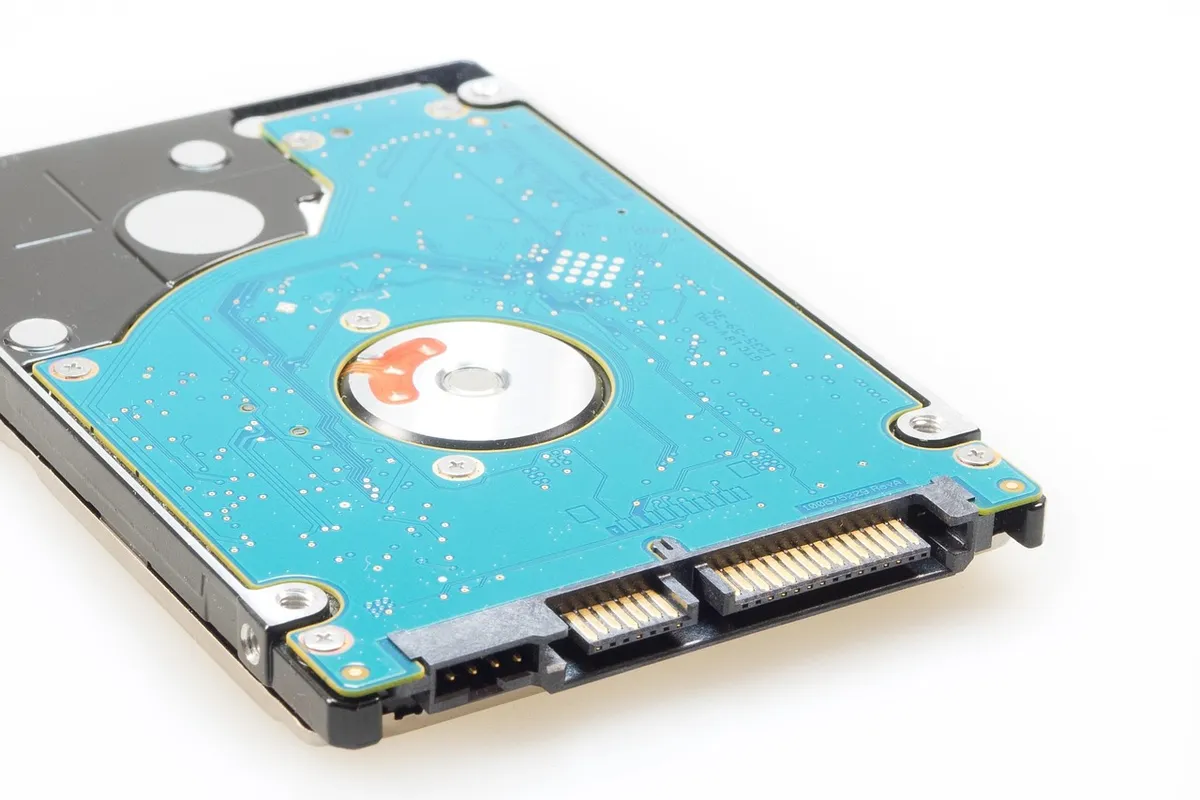
The connection between the drive and the computer matters for SSDs. SATA is the older interface, designed for hard disks, and it limits throughput to roughly 550 megabytes per second in practice. A SATA SSD is a large step up from a hard disk, and still the interface for many 2.5 inch drives, which suits older computers.
NVMe is a protocol that runs over the PCI Express bus, usually in a small M.2 stick that plugs directly into the motherboard. It removes the SATA bottleneck, and the best drives reach several thousand megabytes per second, with faster generations still arriving. NVMe drives also handle many requests at once better, which helps heavy workloads such as video editing and large file transfers.
Check that your computer supports what you buy. Many older desktops and laptops have only SATA connections, and an M.2 slot may support SATA or NVMe or both, depending on the board. A fast NVMe drive in a slot that supports only SATA or in an older PCIe generation works but runs slower. Check the manual before buying, and look at how many M.2 slots exist and how they share lanes.
| Drive type | Typical speed class | Strength | Weakness |
|---|---|---|---|
| Hard disk (HDD) | Around 100 to 200 MB/s sequential, slow for small files | Cheap per terabyte, large capacities | Slow, noisy, fragile when running |
| SATA SSD | Up to about 550 MB/s | Fast response, silent, fits old machines | Limited by the SATA link |
| NVMe SSD | Several thousand MB/s | Fastest, good under heavy load | Needs a suitable slot, can run hot |
Sequential versus random speed
Box figures focus on sequential speed, how fast a drive reads or writes one long file, such as a video. It is the biggest number and the one most useful for copying large files. But everyday use, starting the operating system, opening programs and loading a web browser, involves many small reads and writes scattered across the drive. That is random performance, and it is where the biggest difference lies.
A hard disk can manage only a modest number of random operations per second, since each one needs head movement. An SSD manages tens of thousands or more. This is why a computer with a hard disk feels sluggish even though the sequential figure of the disk seems adequate, and why upgrading to even a basic SATA SSD transforms an old machine.
Among SSDs, the difference between a SATA drive and a fast NVMe one is far smaller in daily use than the difference between a hard disk and any SSD. A fast NVMe drive helps with large file transfers, game loading in some titles and professional work. For ordinary tasks, a good SATA or entry level NVMe drive feels nearly the same, so do not overpay for headline speeds you will not use.
Endurance and TBW
Flash cells wear with writes. Each cell can be rewritten a limited number of times before it becomes unreliable, and drive makers state an endurance rating, usually terabytes written, or TBW, which is the total volume of data the maker expects the drive to take within its warranty. A larger drive has a higher TBW, since it has more cells to share the wear.
For a typical home user, endurance is rarely a problem. Writing tens of gigabytes a day would take many years to approach the rating of even a modest drive. Heavy use, such as continuous video recording, large database work or constant downloading and deleting, can approach it, and these users should check the figure. Drives often keep working past the rating, but it is the maker's guarantee, and no source documents a precise failure point.
Hard disks have no write wear in the same sense, but their mechanical parts wear over time, and failure can come from motor or head problems. Both types can fail without warning. The right response is not to trust the endurance figure alone but to keep backups. Check drive health with the tools that the maker provides or with built in reporting, which shows wear and error counts.
Noise, shock and power
Hard disks are audible: the platters hum and the heads click and whir, especially under load. In a quiet room or a media setup, that can be annoying. SSDs are silent. For a laptop used on trains, in cars or carried in a bag, shock resistance matters, and a spinning disk can be damaged by a drop or knock while running, since the head floats just above the platter and a jolt can make contact.
SSDs have no such problem, which makes them the better choice for portable use. They also use less power in general, which can extend laptop battery life a little, though the effect is modest and varies by machine. Some fast NVMe drives run hot under heavy loads and slow themselves down to protect the chip, so in a small laptop or a poorly ventilated case a heatsink can help.
Temperature and power loss also matter. SSDs can lose data if left unpowered for a very long time, particularly at high temperatures, because charge leaks from cells, so do not treat an unplugged SSD in a drawer as permanent storage. Hard disks are not immune either. For archives meant to last years, keep copies on more than one device and check them from time to time.
Cost per terabyte in relative terms
Hard disks are far cheaper per terabyte than SSDs, and they are available in much larger capacities. The gap has narrowed over the years, and prices change, so a figure here would soon be wrong. In relative terms, a large capacity hard disk costs a fraction of an SSD of the same size, and that remains the main reason to buy one.
The sensible approach is to pay for speed only where it matters. The operating system, applications, and the files you work on benefit from an SSD of moderate size, such as 500 gigabytes to 2 terabytes. Bulk data that you seldom open, like years of photographs, videos and archives, can sit on a cheaper hard disk. A computer with both uses each for what it does best.
Beware of very cheap SSDs with unknown controllers and memory. Some budget drives slow dramatically when their fast cache fills, writing at hard disk speeds during a large transfer. Others lack a reliable warranty. Prefer drives from established makers with clear endurance ratings, and check owner feedback on sustained speed, not just the first few seconds of a benchmark.
External drives and portability
External drives come as both types. Portable hard disks are cheap and have large capacities, but are bulky and fragile. Portable SSDs are small, shock resistant and fast, and they suit moving files between machines and carrying work. A portable SSD on a fast connection can run applications and edit video directly, which a portable hard disk cannot do well.
The connection limits external speed. A fast SSD on an older USB port is capped by the port, and cables matter too, since a charge-only cable may not carry data at all. The ports and speeds of USB-C are explained in USB-C charging standards explained, and the data rating of the cable and the port decides the transfer speed.
Network storage is another route. A network attached storage device with hard disks is a common home backup and media server, with capacity and redundancy at a reasonable cost. Its speed over the network depends on your connection, discussed in Wi-Fi 6 versus Wi-Fi 7, and a wired connection is better for large transfers. Browse the tech and electronics category for related guides.
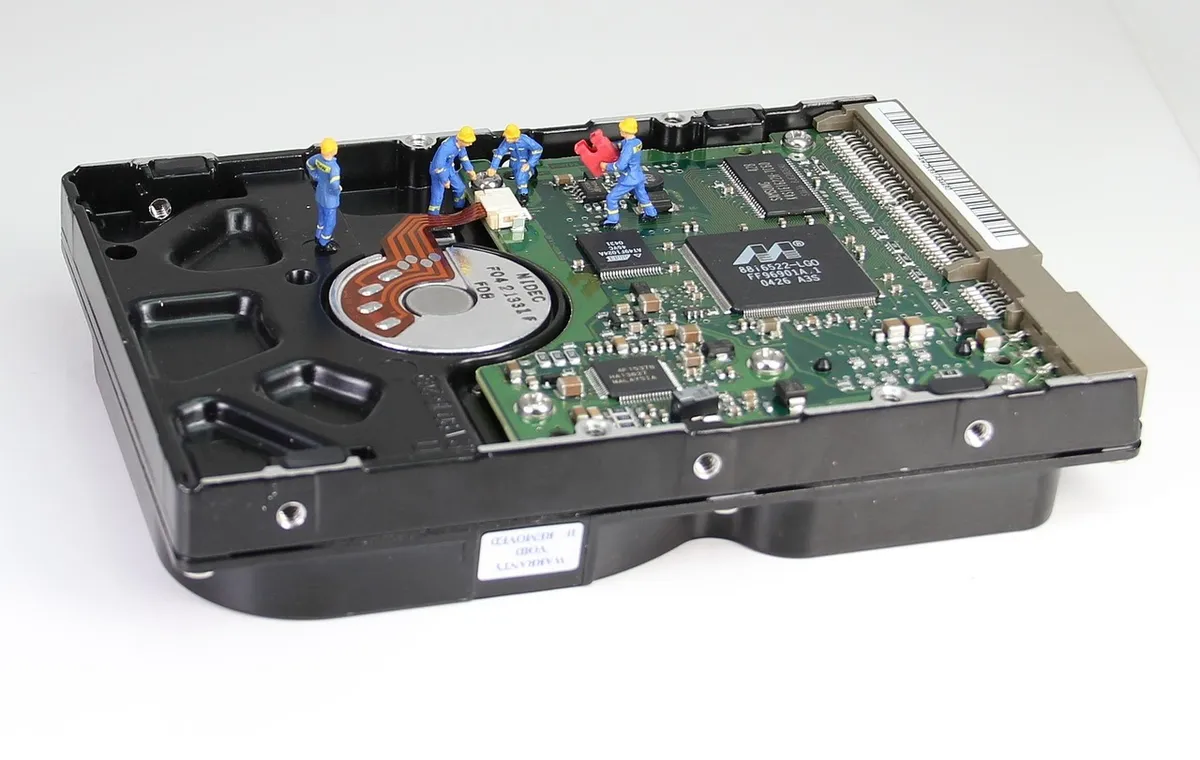
Fitting a drive is easier than most people expect. A 2.5 inch SATA SSD replaces a laptop hard disk with a few screws, and an M.2 stick clips into a slot on the board. The harder part is moving your data. Cloning software copies the whole old drive to the new one, so the computer boots as before, only faster. Make a backup first, and check that the new drive is larger than the used space on the old one before you begin.
Free space matters for SSD speed and lifespan. A drive that is almost full has less room to spread writes and to maintain its internal cache, so it slows and wears faster. Keeping around a fifth of the capacity free is a sensible habit. Modern systems also send a trim command that tells the drive which blocks are unused, which keeps performance steady, so leave that feature on and do not defragment an SSD, since it only adds wear.
For video work and gaming, storage interacts with the screen and the rest of the system. Fast storage cuts loading time but does not raise frame rates, which depend on the graphics hardware and are discussed in monitor refresh rate explained. Choose the drive for the loading and file handling jobs, and the graphics card and monitor for smoothness.
Backup roles for each
No drive is permanent, so a backup plan matters more than the drive type. A common rule is to keep three copies of important data, on two different kinds of storage, with one copy kept off site. For a home, that might be the files on your computer's SSD, a copy on an external hard disk, and a third copy in a cloud service or at a relative's house.
Hard disks suit the backup role because of their low cost per terabyte and large capacities. An external hard disk that you connect only to back up wears less and lasts longer than one left spinning all day. SSDs suit active work and quick restores, but are a poor choice for long term cold storage because of data retention concerns when unpowered.
Test your backups by restoring a few files from time to time. A backup that has never been tested may fail when you need it. If a drive begins to make unusual clicking or grinding noises, becomes very slow, shows errors or disappears from the system, copy your files off it at once. A drive that has failed physically usually needs a professional recovery service, and powering it on repeatedly can make the damage worse.
Frequently asked questions
Is an SSD worth it for an old computer?
Usually yes. Replacing a hard disk with an SSD is typically the most noticeable upgrade for an older machine, speeding up startup, programs and everyday responsiveness. Check that the computer has a suitable slot or bay, and back up your data first.
Do SSDs wear out quickly?
Not for typical home use. Endurance ratings, expressed in terabytes written, are high compared with what most people write in years. Heavy workloads can approach the rating, so check the figure for professional use and keep backups.
Is NVMe worth the extra over SATA?
For everyday tasks, the difference is small. NVMe helps with large file transfers, video editing and heavy workloads. If your computer supports it and the price gap is small, it is a fine choice. Do not pay a large premium for speed you will not use.
Can I use a hard disk for gaming?
Yes, but games will load more slowly, and some modern games benefit from the faster random access of an SSD. A common setup is an SSD for the games you play most and a hard disk for the rest.
Which is better for backups, SSD or HDD?
Hard disks are cheaper per terabyte and are the usual choice for backups. SSDs are fine for fast restores. Use more than one copy, keep one off site, and test restores. Neither type is a safe single copy.
Why is my new SSD slower than advertised?
Advertised speeds are peak, sequential figures, often measured on a short test or at the cache speed. Real transfers can be slower, especially when the cache fills, and the computer's port or interface may limit speed. Check the slot, cable and drivers.
The bottom line
Put your operating system, programs and active files on an SSD. For an older computer, a SATA SSD is a cheap and dramatic upgrade, and for a newer machine with an M.2 slot, an NVMe drive is the natural choice. Do not chase the highest speed figure, since daily use rarely benefits.
Use a hard disk for large, cheap capacity, such as photo archives and backups. Keep more than one copy of anything you care about, with one off site, and test restores. Neither drive type replaces a backup.
Buy from established makers with clear warranties and endurance ratings, check what your computer supports, and avoid cheap drives with unknown parts. A modest, well chosen SSD will transform most machines.