
Amazon affiliate links - we earn a commission.Affiliate disclosure

Buying guide · 12 min read · Updated 2026-11-21

Best Docking Stations for Dual Monitors (2026)

Compare five USB-C docking stations that run two monitors by video ports, 4K refresh, laptop charging watts and laptop compatibility, plus honest Mac limits.

Brianna Cole, Lead Product EditorBy Brianna ColeLead Product Editor5 picks comparedSpec-sheet verified
Best Docking Stations for Dual Monitors

At a glance

Our top picks

Side by side

Spec comparison

A docking station turns one USB-C cable into a desk: two monitors, a network port, a keyboard and mouse, storage and laptop charging. For anyone who works at a desk and then picks the laptop up and leaves, it is the cleanest way to run a dual-monitor setup.

The part buyers miss is that the dock is only half the answer. The laptop's own USB-C video capability decides whether two screens extend, mirror or fail. This guide compares what each dock offers and, more importantly, where the compatibility traps are.

Before you buy

6 Criteria to Look For Before Buying a Docking Station for Dual Monitors

  1. 01

    Laptop video compatibility

    The dock cannot create video streams the laptop does not send. A Windows laptop with Thunderbolt or full DisplayPort Alt Mode can extend two 4K screens, while a base Apple M-series MacBook supports only one external display natively. The mistake is buying a dual HDMI dock like the UGREEN or Anker 8-in-1 and expecting two extended screens on a laptop that cannot output them.

  2. 02

    Resolution and refresh rate

    Two 4K screens at 60 Hz need a lot of bandwidth, and many docks drop one or both to 30 Hz. The UGREEN lists dual 4K at 60 Hz, the Anker 8-in-1 runs one 4K at 60 Hz and shares bandwidth for two, and the Prime lists dual 4K HDMI. A 30 Hz screen is fine for text but looks laggy for scrolling and video.

  3. 03

    Charging wattage

    The dock must supply enough power for your laptop, and the listed maximum is shared with the ports. The Dell WD25 offers 100 W, the MOKiN 87 W and the Anker 8-in-1 85 W max. A 100 W laptop on an 85 W dock charges slowly under load, and the dock takes some power itself.

  4. 04

    Ports and data speed

    Count what you plug in: monitors, keyboard, mouse, storage, network and a webcam. The Anker Prime and UGREEN list 10 Gbps data ports, which suit external SSDs, while the Anker 8-in-1 has only USB-A. Buyers often choose on the headline port count and then find the ports they need are the slow ones.

  5. 05

    Heat and build

    Docks run warm, especially with two displays and high charging. The aluminum body of the UGREEN spreads heat, and the large Anker Prime has more thermal room. A dock that overheats may drop displays, so leave space for airflow around it.

  6. 06

    Support and updates

    Docks get firmware and driver updates that fix display wake and port issues. Dell and Anker publish them while smaller brands often do not. A business dock like the Dell WD25 is worth it for a team of laptops that need to stay compatible for years.

Detailed reviews

The 5 best docking stations for dual monitors, explained

01
Anker Prime 14-in-1 Dock, Dual 4K HDMI, 160W Output
14-in-1Dual 4K HDMI160 W output10 Gbps data
Check price on Amazon
Best for: Power users with a high-wattage laptop, two 4K monitors and many peripherals.

The Anker Prime is the most complete dock here: 14 connections including dual 4K HDMI, 11 data ports at 10 Gbps and 160 W of total output that can charge up to four devices. The 160 W figure is a budget shared across the laptop and the ports, so it does not mean the laptop alone receives 160 W. It is the only model here that handles a high-draw laptop and a phone at the same time without a second charger.

The tradeoff is that it is the highest in the price order of the five candidates, and it is larger and heavier than the UGREEN or Anker 8-in-1. The two HDMI outputs still depend on your laptop's USB-C video lanes, so a laptop that supports only one stream will not extend both screens. Against the MOKiN, you give up the extra DisplayPort outputs but gain more power and a stronger brand record.

In ownership, plan the desk first: the dock needs a wall outlet, and the host cable length sets where it sits. Keep it ventilated because a 160 W dock runs warm, and update the firmware if the maker offers a tool. It is the dock to buy once and keep through several laptop upgrades.

What works

  • 160 W total output charges a laptop plus a phone without a second charger
  • Dual 4K HDMI covers two modern monitors from one cable
  • 10 Gbps data ports suit external SSDs and fast card readers
  • 14 connections cover a full desk of peripherals and a wired network

Watch out for

  • Highest in the price order among the five candidates
  • Larger and warmer than slim docks, so it needs desk space and airflow

Specs

Ports
14-in-1, 11 data ports
Video
Dual 4K HDMI
Total output
160 W max
Data speed
10 Gbps
Position in price order
Highest of five
02
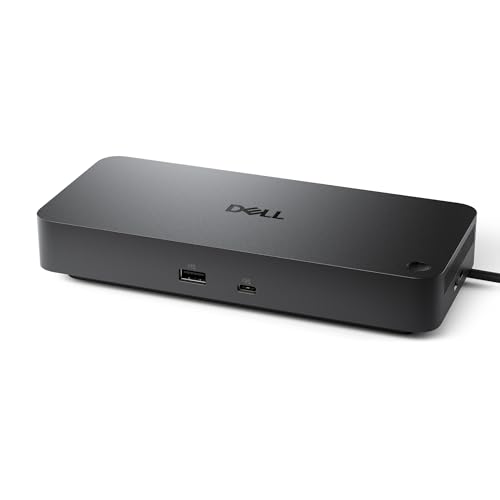
Dell Pro WD25 USB-C Dock, 100W, DisplayPort and HDMI
100 W chargingDisplayPort + HDMIEthernetUSB-A ports
Check price on Amazon
Best for: Office teams and Dell laptop users who want a manageable, supported dock.

The Dell Pro WD25 is the business-oriented option. It offers 100 W charging, a DisplayPort and an HDMI output for two screens, an Ethernet port and USB-A ports. The listing highlights an ambidextrous USB-C cable that can be routed left or right and positions the dock inside Dell's manageable commercial lineup, which matters for IT teams.

The tradeoff is that it is built for Dell and business use, and the listing does not make a case for 4K at 60 Hz on both screens, so check the spec sheet for your resolution. It costs more than the UGREEN and Anker 8-in-1 and offers fewer ports than the Anker Prime. Compared with the MOKiN, it has fewer outputs but a business-grade record for firmware support.

In ownership, the big advantage is support: business docks get firmware updates and stay compatible across a fleet of laptops. Route the cable on the side that suits your desk, and use the right power adapter so the laptop sees its full wattage. It suits an office with several laptops and a long refresh cycle.

What works

  • 100 W charging covers most business laptops from one cable
  • DisplayPort plus HDMI gives a flexible two-monitor mix
  • Ambidextrous cable can be routed left or right for a tidy desk
  • Business dock lineup brings firmware support and long-term availability

Watch out for

  • Resolution and refresh on two screens needs checking against your model
  • Costs more than consumer docks while offering fewer ports than the Prime

Specs

Charging
100 W
Video
DisplayPort and HDMI
Network
Ethernet port
Cable
Ambidextrous USB-C, left or right
Positioning
Business dock with manageability
03
UGREEN 7-in-1 Aluminum Dock, Dual 4K@60Hz HDMI
Dual 4K@60Hz7-in-110 Gbps USBAluminum body
Check price on Amazon
Best for: Buyers on a budget with a laptop that supports dual video output.

The UGREEN is the cheapest dock in the group and still lists two HDMI ports at 4K and 60 Hz each, plus four 10 Gbps USB ports and an aluminum body that spreads heat. Seven connections is lean, which keeps it small on a desk. For a laptop that supports two display streams, it covers the main job.

The tradeoff is that the listing quotes dual 4K at 60 Hz as a headline, and in practice that depends on your laptop's video output. If the laptop only provides a single stream, the two HDMI ports may mirror or run at a lower refresh rate. It has fewer ports and less power-handling than the Anker Prime, and it lacks the business support of the Dell. Compared with the Anker 8-in-1, it offers faster data at 10 Gbps.

In ownership, check the laptop's spec before you buy and keep the receipt. Aluminum bodies feel warm under load, so leave space around the dock. A cheap dock sometimes drops a screen after waking from sleep, so update the laptop's graphics drivers and try a different USB-C port if that occurs.

What works

  • Cheapest of the five candidates by price order
  • Dual HDMI at 4K and 60 Hz listed for each port
  • 10 Gbps USB ports suit external SSDs and fast storage
  • Aluminum body spreads heat better than a plastic shell

Watch out for

  • Only seven connections, so no SD card reader or Ethernet on every desk
  • Dual 4K at 60 Hz depends on the laptop's video output, not the dock

Specs

Video
Two HDMI, 4K at 60 Hz each
Data ports
2 USB-A and 2 USB-C at 10 Gbps
Body
Aluminum alloy
Connections
7-in-1
Position in price order
Cheapest of five
04
MOKiN 14-in-1 Dock, 2 HDMI 2 DisplayPort, 87W PD
14-in-12 HDMI + 2 DP87 W PDScreen lock key
Check price on Amazon
Best for: Desks with several monitors of different types and a tight budget.

The MOKiN offers four video outputs, two HDMI and two DisplayPort, in a 14-in-1 body with 87 W power delivery and a screen lock button that turns off the monitors with a short press. The listing markets it as a triple-4K dock, which is a stretch: four ports are available, but how many screens run depends on how many streams the laptop sends.

The tradeoff is brand maturity and the video claim. It sits second cheapest of the five candidates, so you get many outputs for little money, but compatibility documentation is thinner than for Anker or Dell. Against the UGREEN it has more ports at a higher price, and against the Anker Prime it has less power and a weaker support record.

In ownership, test every port in the first week, because a dock with many outputs has more to go wrong. Use the DisplayPort outputs for the monitors that need higher refresh rates, and the HDMI outputs for office screens. The screen lock button is a small but useful feature for shared desks, and it spares you the shortcut.

What works

  • Four video outputs mix HDMI and DisplayPort for varied monitors
  • 14 connections cover peripherals, network and card reading
  • Screen lock button turns off screens with a short press
  • Second lowest in the price order for the number of ports

Watch out for

  • Triple-screen claims depend entirely on the laptop's video support
  • Less documentation and brand support than Anker or Dell docks

Specs

Video outputs
2 HDMI and 2 DisplayPort
Connections
14-in-1
Power delivery
87 W
Extra
Screen lock button
Position in price order
2 of 5
05
Anker 8-in-1 USB-C Dock, Dual HDMI 4K, 85W Max, Ethernet
8-in-1Dual HDMI85 W max1 Gbps Ethernet
Check price on Amazon
Best for: Home offices running two 1080p monitors from a single laptop.

The Anker 8-in-1 is the compact, no-fuss dock. It carries two HDMI ports, a PD-IN charging port, two USB-A data ports and a 1 Gbps Ethernet port. The listing says a single 4K screen runs at 60 Hz, while two displays share bandwidth, which is the honest detail that other listings bury.

The tradeoff is that two screens drop to a lower setting, so it is a better fit for dual 1080p monitors than for two 4K ones. It is mid-priced at three of five and does not match the 10 Gbps data of the UGREEN. Compared with the Anker Prime, it is smaller and cheaper but much less powerful.

In ownership, treat it as a small desk dock. Keep it cool, use the supplied adapter with the PD-IN port and expect 85 W max to be reduced after the dock takes its own share. It is a good fit for a home office with a single laptop and two ordinary monitors.

What works

  • Compact size fits a small desk or a laptop bag
  • Two HDMI outputs support a dual-monitor setup at standard resolution
  • 1 Gbps Ethernet gives a stable wired connection
  • Clear listing about 4K behavior when both screens are in use

Watch out for

  • Two screens share bandwidth, so dual 4K at 60 Hz is not the design
  • Only two USB-A ports, with no fast USB-C data ports for storage

Specs

Connections
8-in-1
Video
Two HDMI, 4K at 60 Hz single screen
Power
85 W max
Network
1 Gbps Ethernet
Data ports
2 USB-A

Spec decoder

What the listing measurements really mean

The numbers brands lead with, translated into what they tell you about fit, comfort and wear at home.

DisplayPort Alt Mode

A USB-C feature that sends a DisplayPort video signal over the same cable as data. It only works when the laptop port supports it.

Watch forA laptop without it cannot drive any of the five docks here, however many HDMI ports they have.

4K at 60 Hz

A 3840 by 2160 picture refreshed 60 times a second, which needs HDMI 2.0 or DisplayPort 1.2 or newer. Many docks only reach 30 Hz when two screens share bandwidth.

Watch forThe Anker 8-in-1 says a single 4K screen runs at 60 Hz, so two screens run lower.

PD wattage

The maximum power the dock sends to the laptop through USB-C. It is shared with the dock's own ports and electronics.

Watch forThe Dell WD25 lists 100 W, the MOKiN 87 W and the Anker 8-in-1 85 W max.

10 Gbps USB

USB 3.2 Gen 2 speed, double the 5 Gbps of the older USB 3.0. It matters for external SSDs and fast card readers.

Watch forThe UGREEN and Anker Prime list 10 Gbps ports, but the Anker 8-in-1 lists only USB-A.

Total output wattage

The combined power budget for all charging ports. It is not the power for the laptop alone.

Watch forThe Anker Prime lists 160 W total, which is shared across up to four devices.

Methodology

How We Evaluated These Docking Stations for Dual Monitors

Dual-monitor capability

We evaluated how each dock handles two screens and what the listing says about resolution and refresh. The UGREEN lists dual 4K at 60 Hz and the Anker 8-in-1 is clear that two screens share bandwidth. We favoured docks with honest limits.

Power and charging

We compared the stated laptop charging wattage and total output. The Anker Prime lists 160 W total, the Dell WD25 100 W and the MOKiN 87 W. We treated every figure as best case.

Ports and data

We reviewed the port mix and data speeds against a typical desk. The UGREEN has four 10 Gbps ports while the Anker 8-in-1 has two USB-A. We rewarded more fast USB-C ports.

Heat and build

We looked at the body material and size, since docks run warm. The UGREEN uses aluminum and the Anker Prime is larger. We based this on listings and owner feedback patterns.

Support and compatibility

We checked brand history for firmware and driver updates. Dell and Anker publish updates more consistently than smaller brands. Ranking went down for thin documentation.

Decision guide

How to Choose the Right Docking Stations for Dual Monitors

By Laptop Type

SituationPickWhy
Windows laptop with full DisplayPort Alt ModeUGREEN 7-in-1Dual 4K at 60 Hz on a modest dock
Dell business laptopDell WD25Manageable dock built for the lineup
High-wattage creator laptopAnker Prime 14-in-1160 W total and 10 Gbps ports
Laptop with only one video streamAnker 8-in-1Honest about shared bandwidth

By Budget

SituationPickWhy
Cheapest dual-monitor dockUGREEN 7-in-1Cheapest of five
Many outputs for little moneyMOKiN 14-in-1Second cheapest with four video ports
Compact mid-price optionAnker 8-in-1Mid position in the price order
Premium all-in-oneAnker PrimeHighest in the price order

Consumer vs Business Dock

Consumer docks

The UGREEN, MOKiN and Anker models focus on ports and price. They are easy to buy and set up, with less firmware and fleet management.

Business docks

The Dell WD25 focuses on manageability and long-term compatibility. It costs more for fewer ports but suits office fleets.

Pick a consumer dock for a home desk, and a business dock for an office with several laptops and an IT team.

By Display Setup

SituationPickWhy
Two 4K monitors at 60 HzUGREEN or Anker PrimeBoth list dual 4K HDMI
Mixed HDMI and DisplayPort monitorsMOKiN or Dell WD25Both offer DisplayPort and HDMI
Two 1080p monitorsAnker 8-in-1Shared bandwidth is fine at 1080p
More than two screensMOKiN 14-in-1Four video outputs, laptop permitting

For Dual Monitors Specifically

Look for

A dock that lists dual-display resolutions honestly, a laptop port with DisplayPort Alt Mode and enough watts for charging. Check the laptop spec before the dock spec.

In this comparison

The Anker Prime and UGREEN are the two clearest dual-4K choices, while the Anker 8-in-1 is the most honest about limits.

When to Spend More

Spend more if

You have a high-wattage laptop, two 4K screens and many peripherals, or you manage a fleet and need firmware support.

Save if

You have two ordinary monitors and a laptop that supports dual video. The UGREEN or Anker 8-in-1 covers it.

Ownership

Maintenance schedule

The upkeep that decides whether a piece still looks good in year five.

TaskIntervalWhy it matters
Update dock firmwareTwice a yearUpdates fix display wake and port drops. Check the maker's tool or support page.
Update laptop graphics driversEvery few monthsMost dock display issues trace back to graphics drivers. Updates often restore a screen that drops.
Check the host cableEvery few monthsThe cable that connects the dock to the laptop takes the most wear. Frays or loose fit cause drops.
Clear dust around the ventsEvery few monthsA dock runs warm under load. Dust blocks airflow and can cause throttling.
Use the supplied power adapterAlwaysA weaker adapter limits laptop charging and causes display drops. Use the one in the box.

FAQ

Frequently Asked Questions

Will a dual HDMI dock work with my MacBook?

Base Apple M-series MacBooks support one external display natively, so two screens need a Pro or Max chip or DisplayLink software. Check your model first.

Which dock is best for two 4K monitors?

The UGREEN and Anker Prime list dual 4K HDMI, but your laptop has to send two streams. The Anker Prime also adds more power and ports.

Why does my second monitor mirror instead of extend?

The laptop may send only one video stream. In that case the dock splits it into two screens that mirror.

Does the dock charge my laptop?

Yes, up to its wattage rating, shared with the other ports. Make sure the wattage is at least what the laptop needs.

Are cheap docks reliable?

Many work well, but they may drop a screen after waking. Updating drivers and firmware helps.

Do I need a Thunderbolt dock?

Not for most setups. A USB-C dock with DisplayPort Alt Mode handles two screens, while Thunderbolt adds more bandwidth.

Bottom line

The short version

Browse more docking stations for dual monitorson Amazon →
Brianna Cole, Lead Product Editor

About the author

Brianna Cole

Lead Product Editor, SenseiReview

Brianna Cole leads SenseiReview's buying guides, turning published specifications, documentation and owner feedback patterns into clear verdicts across home, tech, fitness, outdoor and DIY products.

More from Brianna →

Keep reading

Related guides